I’ve built a Virtual Private Network (VPN) server on AWS Lightsail by using SoftEther VPN server Docker image in the following steps:
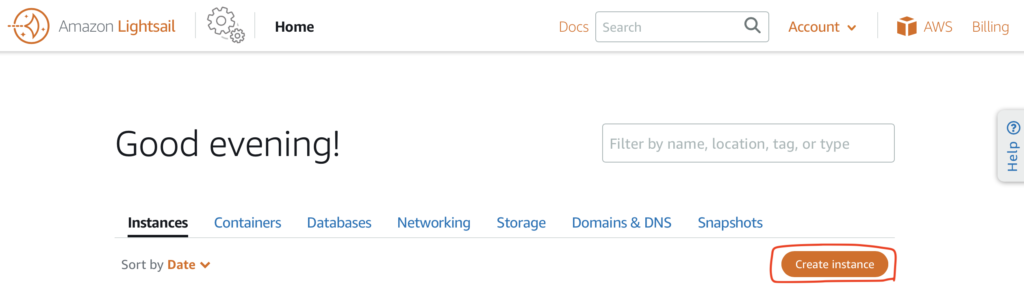
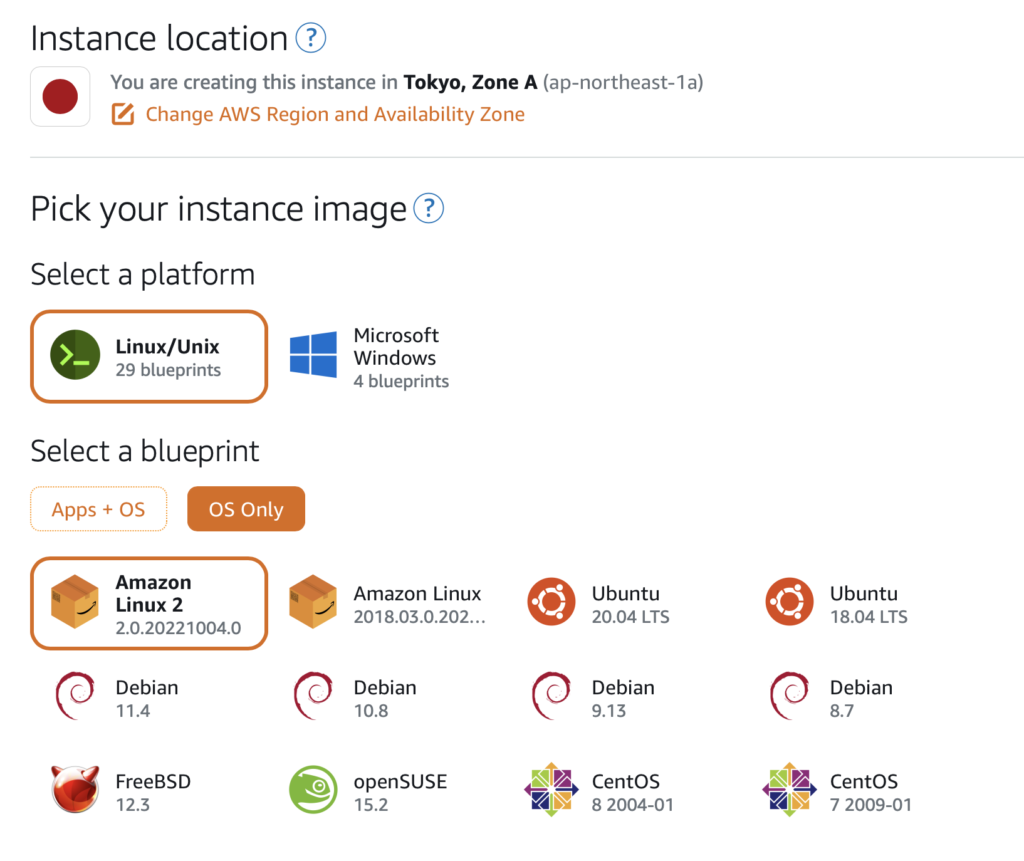
-1. Create an instance by clicking “Create instance”.
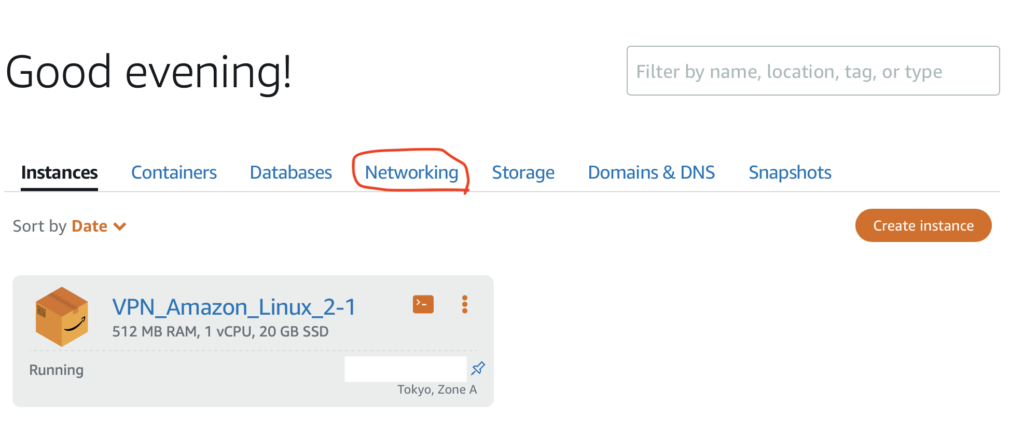
-2. If you want to set a static IP address to the instance, you click “Networking”.
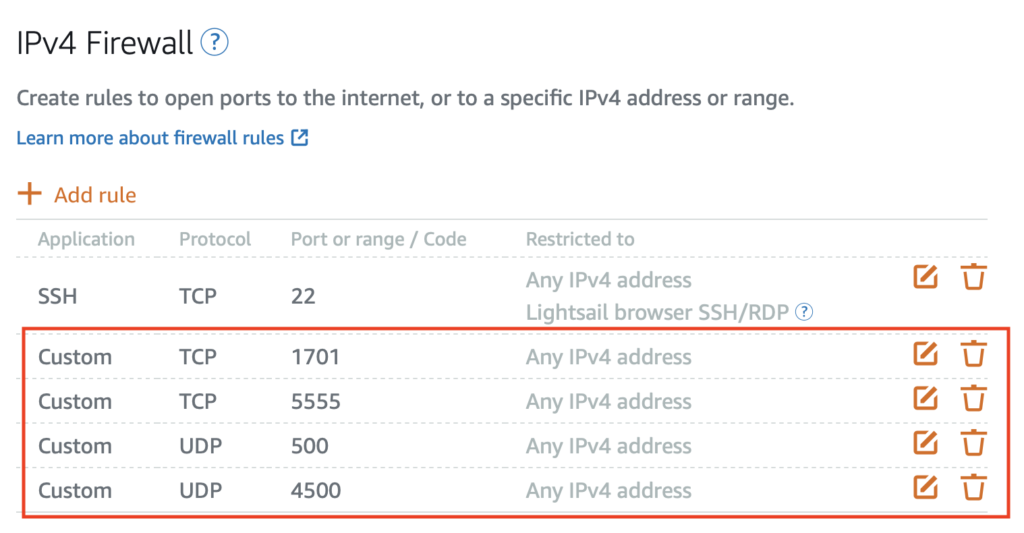
-3. Click the created instance, and then “Networking” to open the ports.
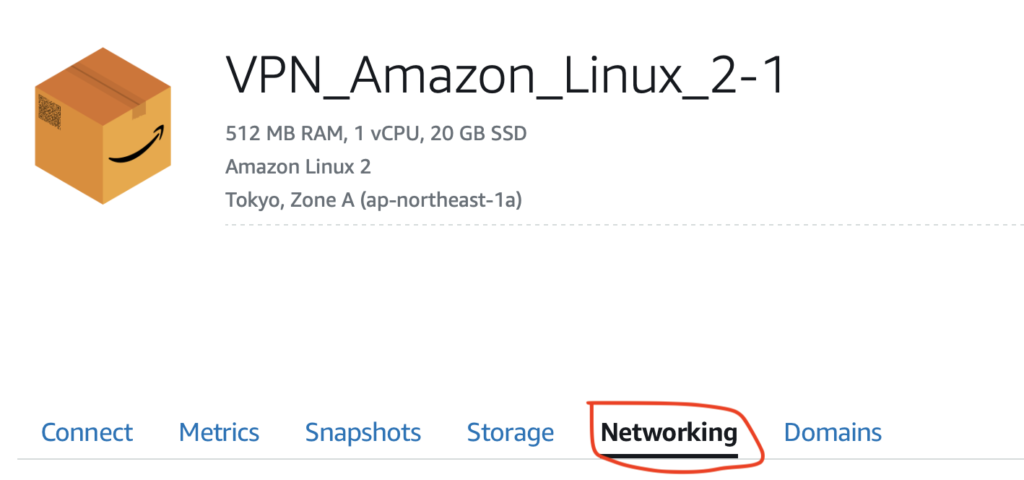
-4. Add the following ports to the list.
-5. Connect the instance by using your browser or SSH client.
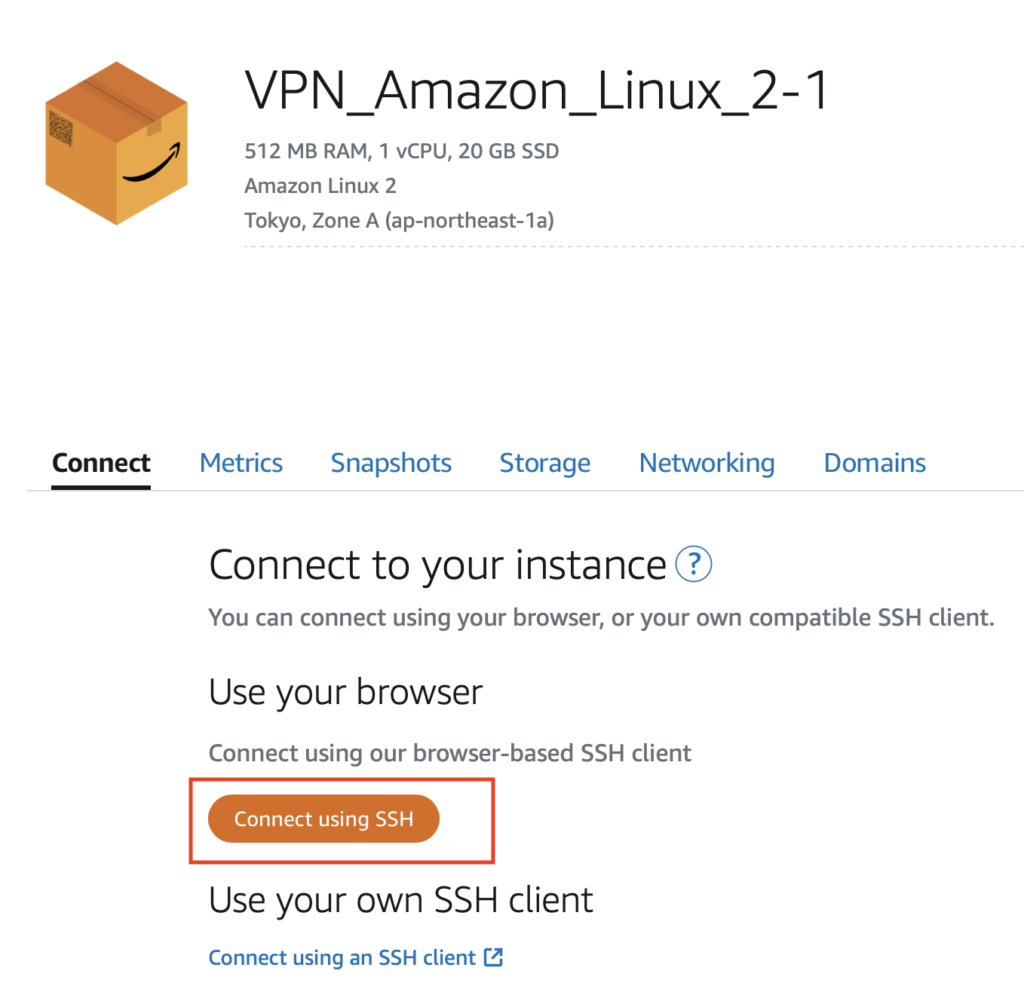
-5.1 I downloaded a SSH key (‘LightsailDefaultKey-ap-northeast-1.pem’) and then used my SSH client on Mac.
$ cd
$ mkdir .ssh
$ cd ~/Downloads
$ mv LightsailDefaultKey-ap-northeast-1.pem \
     ~/.ssh/Lightsail_Key.pem
$ cd ~/.ssh/
$ chmod 700 LightsailKey.pem
$ ssh -i LightsailKey.pem ec2-user@xx.xx.xx.xx
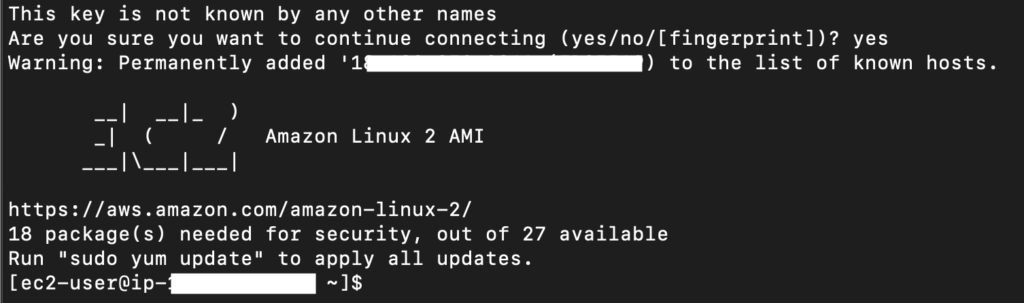
-6. Update and install a docker by inputing the following commands:
$ sudo yum update
$ sudo yum install -y docker
$ sudo systemctl start docker.service
$ sudo systemctl enable docker.service
-7. Create a file, named as ‘env_list.txt’, including these environments (siomiz/softethervpn):
$ vi env_list.txt
PSK=presharedkey
USERS=user1:pass1;user2:pass2
SPW=ServerManagementPassword
-8. Run a docker by inputing this command:
$ sudo docker run -d --cap-add NET_ADMIN \
       -p 500:500/udp -p 4500:4500/udp \
       -p 1701:1701/tcp -p 5555:5555/tcp \
       --name softether-vpn \
       --env-file=/home/ec2-user/env_list.txt \
       siomiz/softethervpn
-9. Check whether the docker works or not by inputing “sudo docker ps”.

-10. Connect the VPN server with your PCs and/or smartphones by referring to the site (Japanese).
https://medium.com/@catindog/45秒でdockerでvpnサーバを建てる-7c337496d621
-11. Check your IP address by visiting the site:
https://www.cman.jp/network/support/go_access.cgi
Other reference sites (Japanese):
https://www.happylifecreators.com/blog/20220606/
https://scrapbox.io/motoso/Amazon_LightsailでSoftether_VPNをたてる